Structural Knowledge
Understanding the "Places" within your application.
The Site Map
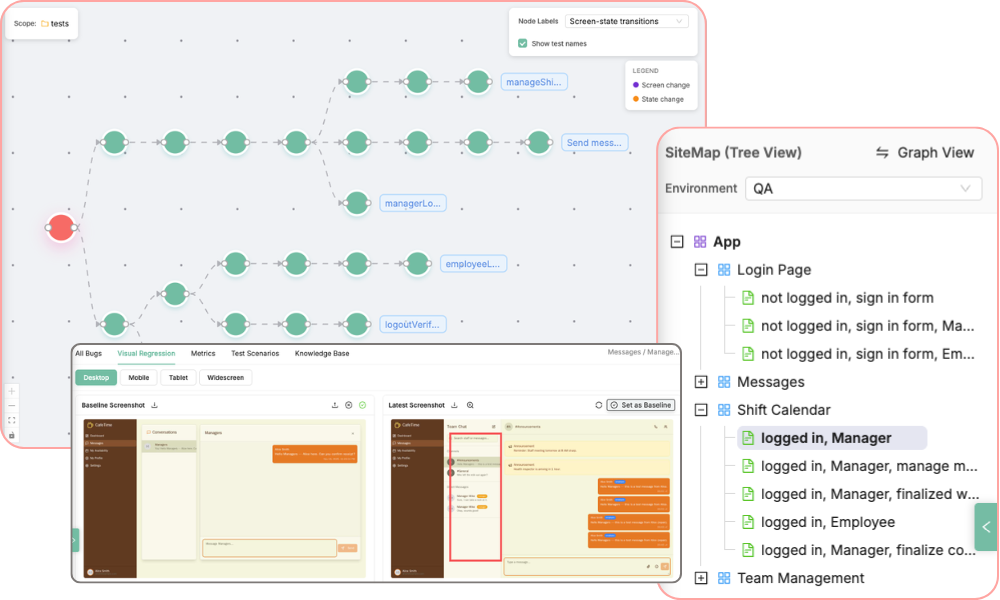
Your app's structural blueprint, built and updated automatically. Every time an Exploration runs, Atlas maps every screen and state (like 'Admin Dashboard' vs. 'Logged-out User') into an easy-to-understand hierarchy.
This isn't just a map; it's your command center.
Organised Bugs
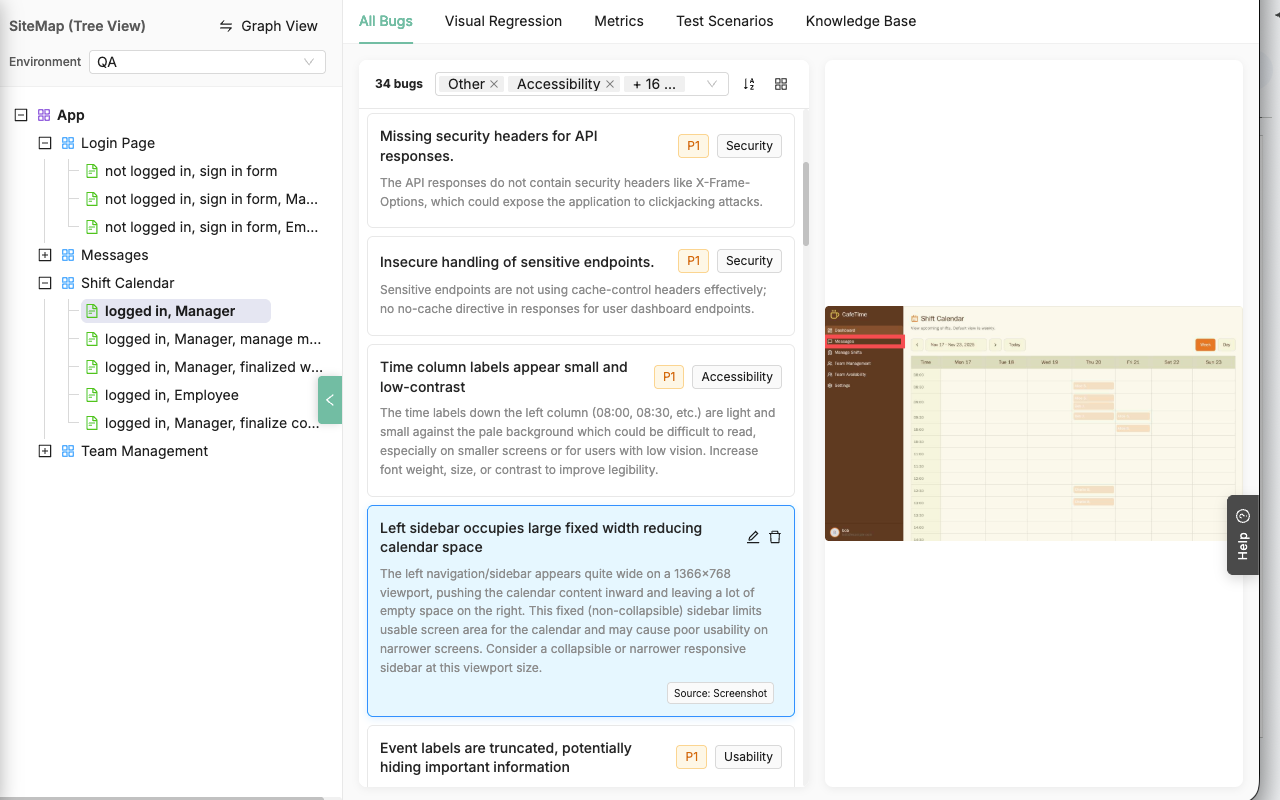
Bugs are no longer lost in a flat list. Atlas automatically analyzes and catalogs every issue—from the DOM, console, network, or screenshots—and pins it directly to the screen and state where it was found.
Visual Regressions
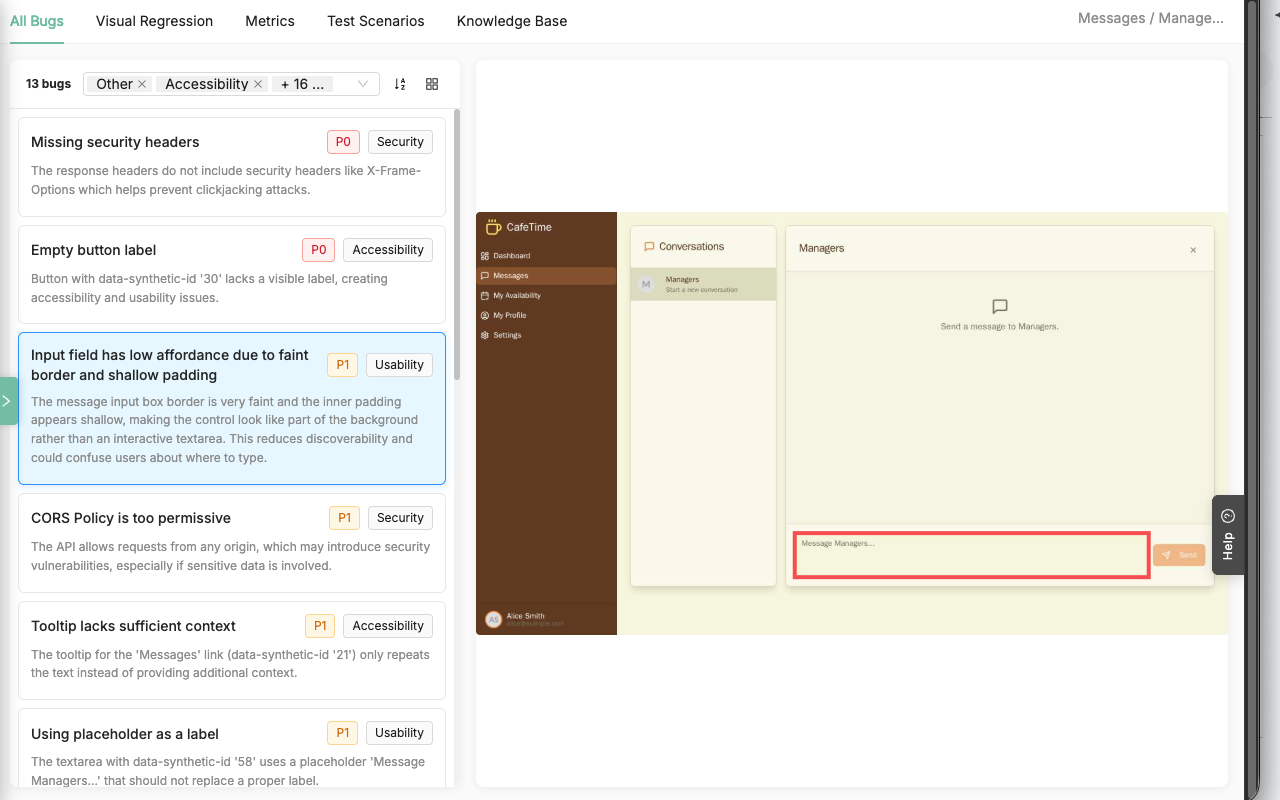
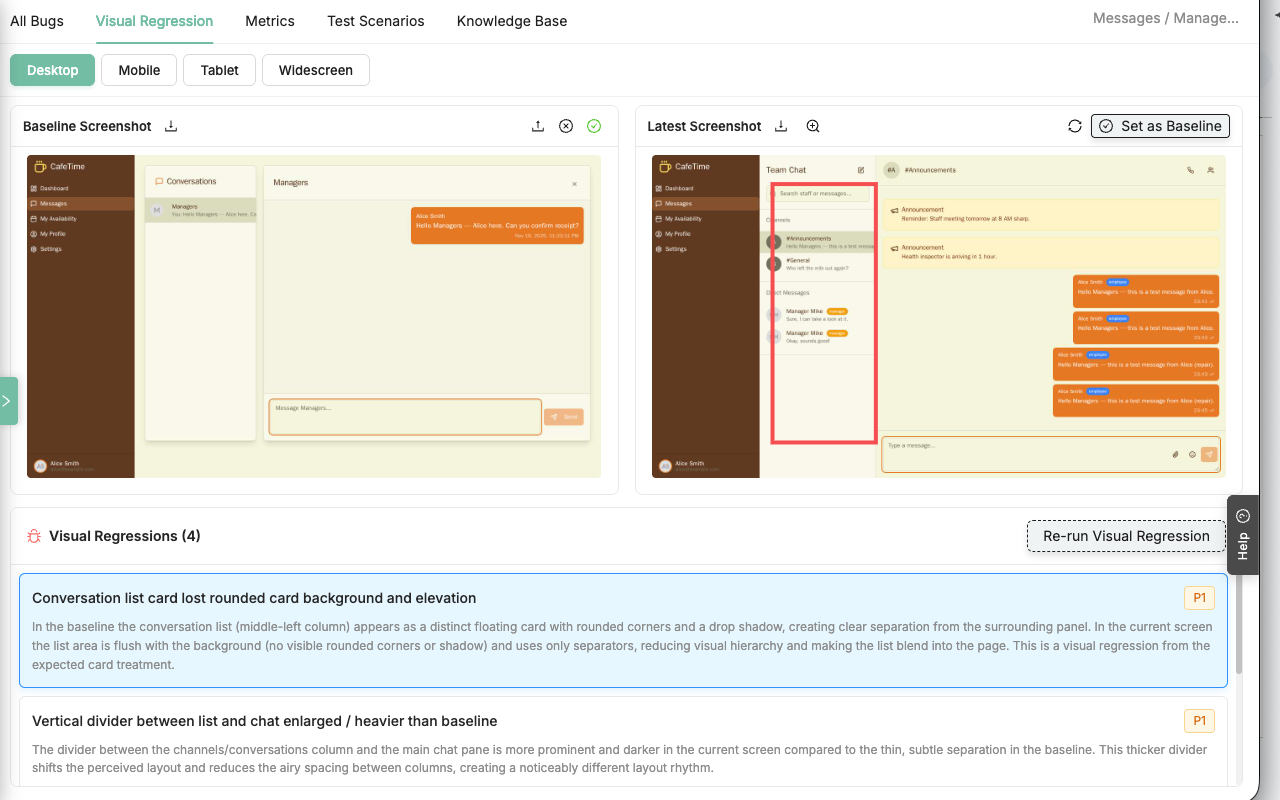
Stop drowning in false positives. Our context-aware engine compares new screenshots against an "approved baseline" for every screen-state to spot material regressions.
You can even upload a Figma design as your baseline to compare your plan directly against the final build.
Smart Knowledge Base
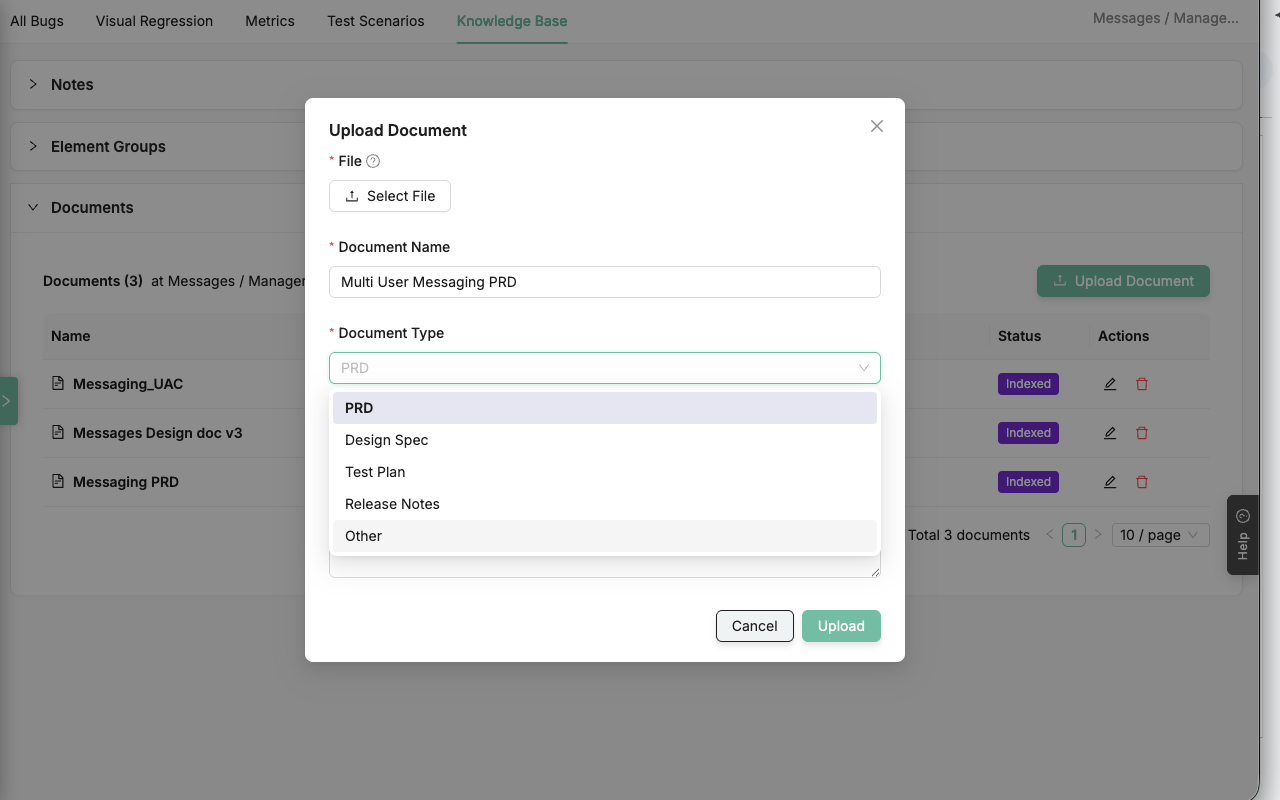
A flat folder of PRDs isn't useful. Atlas lets you attach your docs—PRDs, specs, user stories—directly to the screen or feature they relate to.
When the AI writes a test, it retrieves the exact, relevant context for that specific part of your app.
Behavioural Knowledge
Understanding the "Pathways" through your app.
Visualize User Journeys
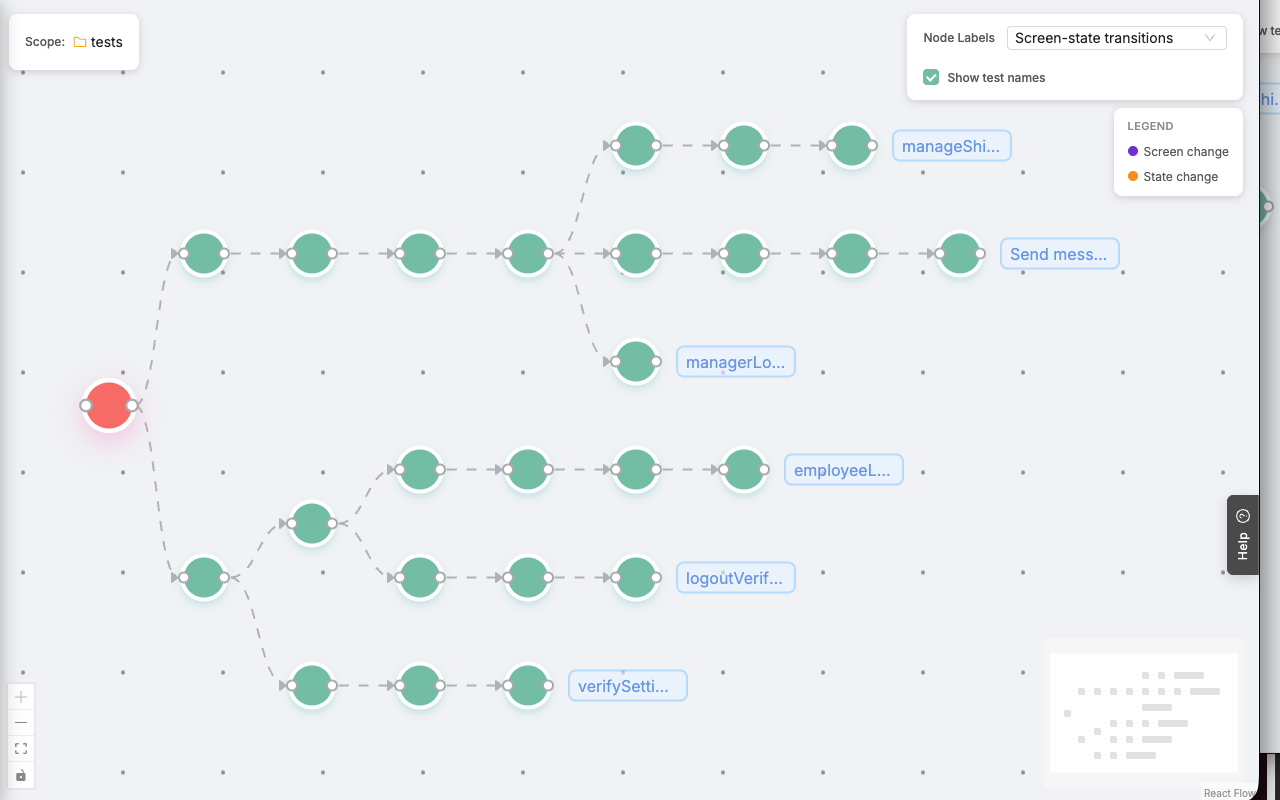
Stop thinking of tests as a flat list of files. The Behaviour Map renders your entire SmartTest suite as an interactive journey tree.
See your coverage, understand test flow, and pinpoint exactly where screen transitions (like 'Login' -> 'Dashboard') happen.
Expand the Test Suite
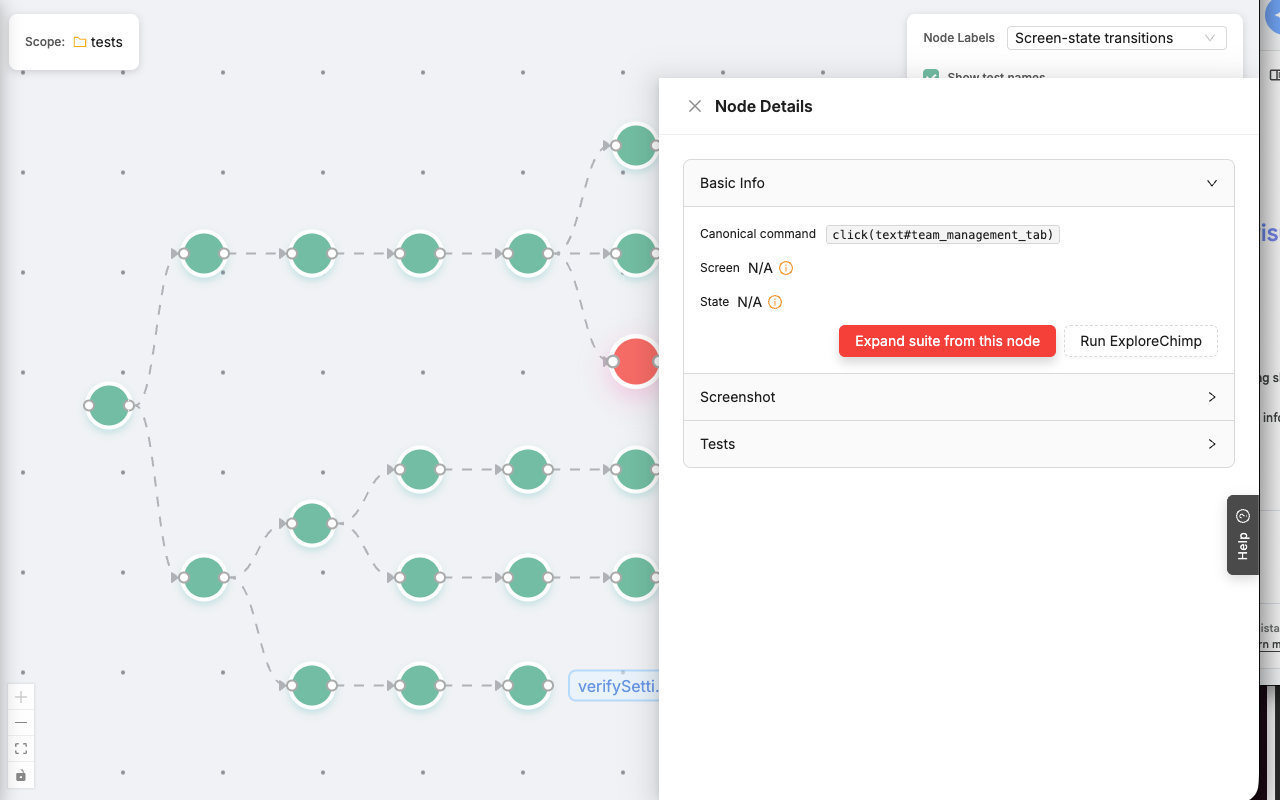
Find the "unhappy paths" you missed. Right-click any node in a journey and ask the AI to "Expand Test Suite."
The agent will navigate to that step, analyze the page for unexplored branches, and automatically generate a new test plan to cover them.
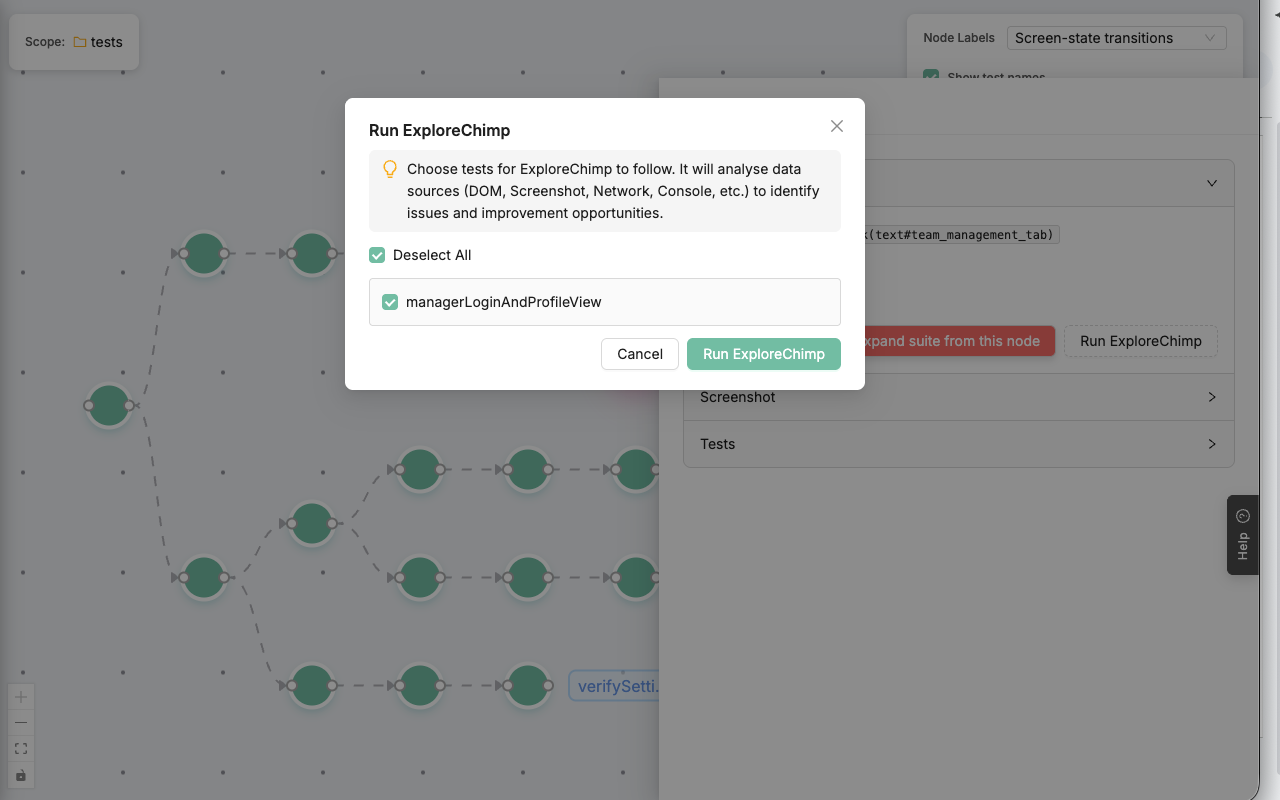
Run Hyper-Focused Explorations
Don't run your entire suite just to check one small change. Click on any node in a journey and select "Run ExploreChimp."
The agent will use that test as its guide, focusing its powerful analysis on one specific pathway.