
TestChimp Chrome Extension - The Cursor for QA
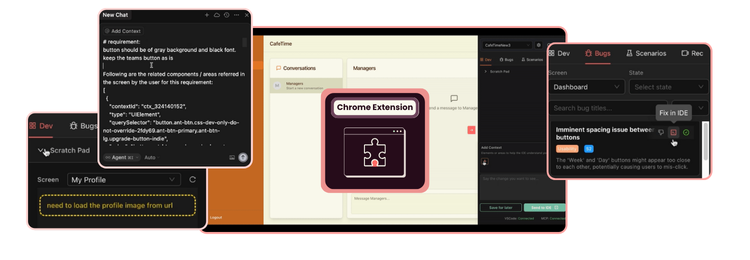
AI Assistance, Right by your side.
Introduction
Much like how Cursor / Windsurf indexes your codebase to have richer context about your code for more tailored assistance, TestChimp AI agent autonomously explores your webapp to build a comprehensive *runtime behaviour graph* of your product for more context-aware assistance to your QA workflows.
With its explorations, it captures the different screens, states, and pathways in your product, detailed down to individual element level. Along the way it captures the various bugs it finds in each screen, analyzing the DOM, Console, Network and Screenshots, catching 100s of common bugs that makes your app look and feel mediocre.
Chrome Extension
Our Chrome extension brings TestChimp’s context-aware AI assistance directly to your webapp, as you test.
1) Generate SmartTests from Manual test steps
SmartTests are plain playwright scripts that are used by our Exploratory agent to walk through your webapp in a systemic manner. You can create SmartTests by capturing manual test steps with our Chrome Extension. Open extension -> Record tab -> Start Capture, and perform the test steps of the user journey. The extension will generate playwright commands (similar to Playwright Codeine), and create the test (with intent comments automatically added by analysing dom content at each step).
2) Report bugs without leaving your browser
Found a bug while browsing your webapp? Just Open up the Chrome extension, and click Add Bug (in Bugs tab). You can select areas & relevant elements on the page to the bug, and the extension will take a screenshot, draw bounding boxes on the selected elements and create the bug, capturing full context for easier troubleshooting and collaboration.
3) View issues relevant to the current screen
Directly view the bugs *relevant to the current screen* you are in – while you are testing your webapp, making it a breeze to track what needs fixing on the screen, and what testing needs to be done.
4) AI enabled bug finding
Click on Find Bugs in the Bugs tab, and it will analyze the current DOM, recent console logs, recent network activity and screenshot of the current screen to identify bugs across many critical categories. You can add bugs manually as well, with relevant elements from the UI tagged – for richer, consolidated bug reports.
Collaborate with your IDE, right from your browser
Install the TestChimp VSCode extension on your AI enabled IDE (Cursor etc.), and the chrome extension will collaborate with it to get fixes done – without leaving your browser.
5) Fix Bugs in one-click
Click on any bug listed for the current page, and click “Fix in IDE”. The extension will collect all the necessary context for the bug, and prompt your IDE to fix the issue.
6) Visual Vibe Coding
Just point to elements / areas on your webapp and *“say the change you want to see”*. The extension will communicate the related files, screen details, and details about targeted elements added by you to the context window, to your IDE and get it implemented, making your vibe coding sessions even more seamless.
Related Resources
To make the best out of our Chrome extension, check out the following resources:
- TestChimp VSCode extension: Bridging communications between Chrome extension and IDE
- TestChimp MCP Server: Giving your MCP enabled IDEs (such as Cursor) access to the runtime behaviour context of your webapps.
- Babel-plugin-source-mapper: A tiny babel plugin instrumenting your build with source file metadata for enabling richer prompting to your IDEs directly from the Chrome extension.